
From an idea to a published website: the whole walkthrough
Every screen between typing a sentence and having a live website with a working contact form, including what happens if something fails.
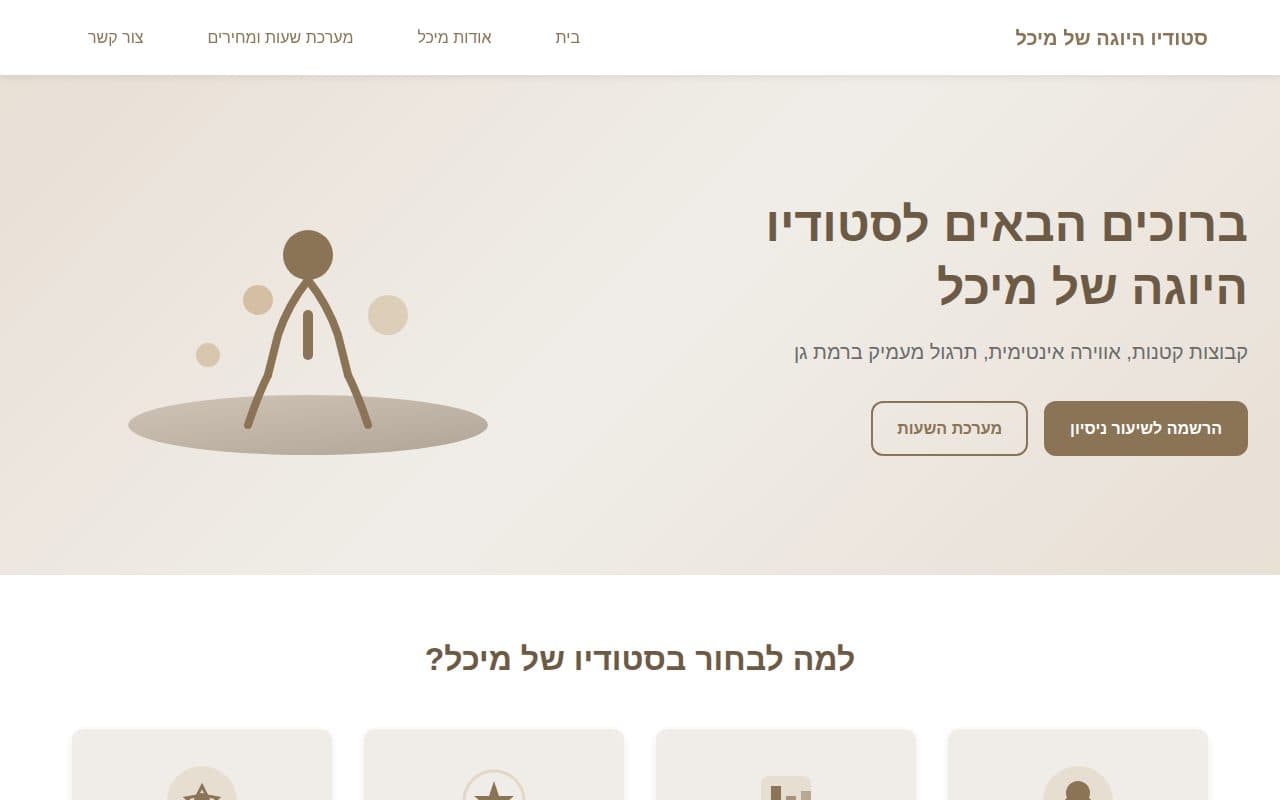
This is the full path a new account takes, with nothing skipped. It uses the free website; the same steps apply to a paid build.
1. Describe the idea
On the home page there is one box. Write what the business is and what the site should do, for example: "A website for Michal's yoga studio in Haifa: class schedule, prices, a short about section and a contact form". You can write in English or Hebrew. Press the button.
2. Create the account
If you are not signed in, you are asked for an email and a password (or to continue with Google). The idea you typed is kept and waits for you. A verification email arrives; the free website needs a verified address, so open it and press the link.
3. Review the plan and the price
9orb turns the idea into a plan: the pages, the sections, the form. Before anything is built you see what it will cost. For the first website the price is shown as free; otherwise the credit price is shown and nothing is charged until you approve.
4. Build
The website builder usually finishes in a few minutes. The page shows progress and, if the AI provider has an outage, says so and lets you retry later. A failed build never uses the free website and never costs credits.
5. Publish and check the form
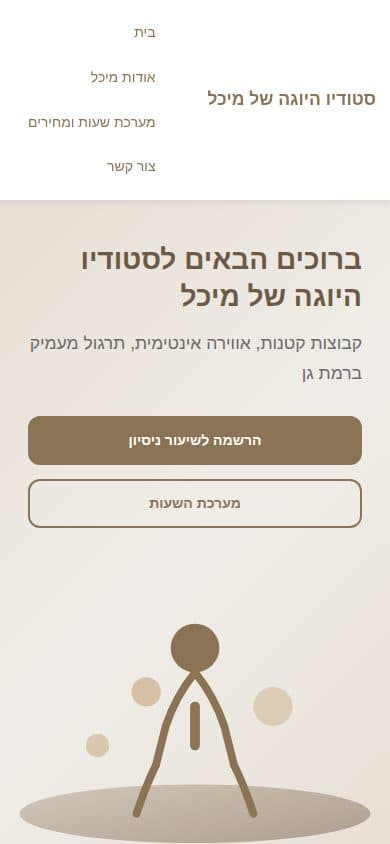
When the build passes, the site is published on your 9orbsites.com address with HTTPS. Open it on your phone, then send a test message through the contact form; it appears under Submissions in the project within seconds, and you get an email notification.
6. Improve it
Open Changes, type what to alter ("make the prices a table", "add a Saturday class", "replace the hero text with ..."). Each change is a new version; the 10 first ones are free on the free website. Version history lets you restore any earlier version.
7. Connect your domain (optional)
Under Domains, connect a domain you own (free) or buy one in credits. See the domain guide for the DNS steps.
If something goes wrong
- The build fails: the error is shown in plain language, with a Retry button. Nothing was consumed.
- The build looks stuck: builds that stop reporting progress are recovered automatically within two hours and any credits are refunded.
- You cannot find your site: the project page shows the live address, and the dashboard lists every project.
- You need a person: write to support@9orb.com or use the contact page.